![LH-2025-Logos-15.png]](https://help.tryletterhead.com/hs-fs/hubfs/LH-2025-Logos-15.png?height=31&name=LH-2025-Logos-15.png)
Connecting Stripe to Letterhead unlocks three capabilities, all managed from a single integration panel:
- Purchase activity — Stripe purchase events appear in each contact's activity feed alongside their email engagement history.
- Customer sync — your Stripe customers are imported into your Letterhead audience as contacts and kept in sync as new customers are added.
- Product sync — your Stripe product catalog is imported into your curation library so you can drop products into newsletters as ready-made content blocks.
All three are opt-in. The connection is read-only: Letterhead reads data from Stripe but does not create, update, or delete anything in your Stripe account.
Before you start- You'll need a Stripe secret API key from your Stripe Dashboard under Developers → API keys. Stripe recommends using a restricted key scoped to read-only access for tighter security.
- Select the Sharing with a third-party service option.
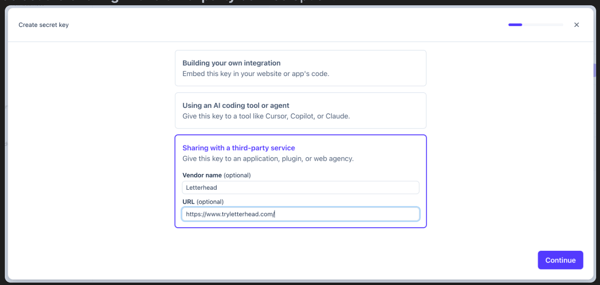
- Click Continue
- Select the Read option at the top
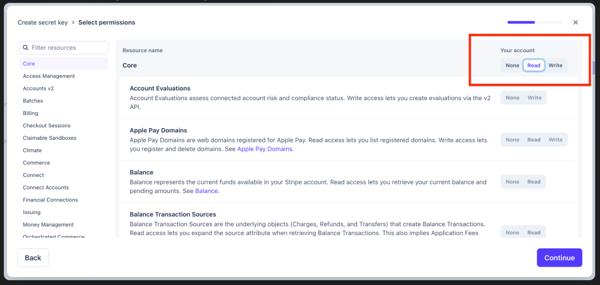
- Click Continue
- Name it Letterhead, for future reference, and click Create key.
- Copy the key to use in the How to connect section below.
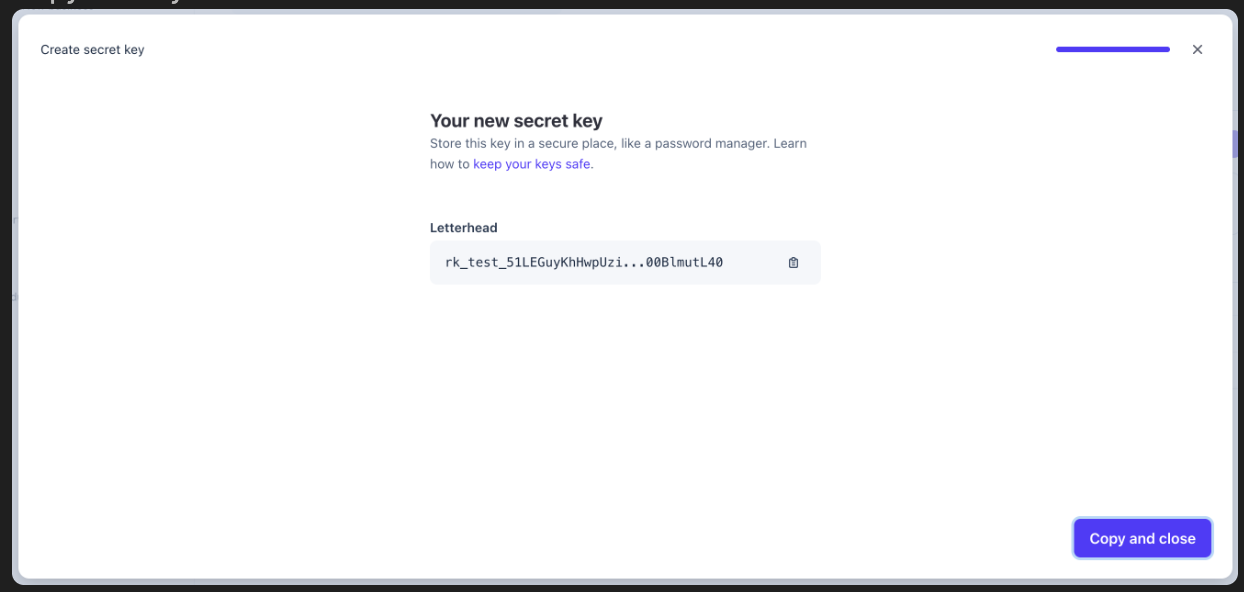
- Only Company Administrators can connect integrations.
- Go to Company Settings → Integrations.
- Find the Stripe card and click it to open the connection panel.
- Paste your Stripe secret API key into the API Key field.
- Click Save. Letterhead validates the key and shows a "Stripe account connected" confirmation.
Once connected, two optional sync toggles become available in the same panel.
Purchase activity in contact profilesPurchase events from Stripe appear automatically in contact profiles as soon as the connection is live — no extra toggle needed.
To see them, go to Audience → Contacts, open any contact, and scroll to their Activity feed. Each Stripe purchase appears as an entry like "Purchased — $20.00 via Stripe" with the transaction date. The amount is displayed in the purchase currency (e.g. USD, EUR).
Purchase activity only records events going forward from the point of connection. Purchases made before you connected Stripe won't appear in the activity feed.
Sync your customers into LetterheadThe Sync Customers toggle imports your Stripe customers into your Letterhead audience as contacts and keeps them in sync as new customers appear in Stripe.
- In the Stripe integration panel, turn on Sync Customers.
- Letterhead confirms: "Importing your Stripe customers. They'll appear in your audience shortly."
A few things to know:
- Existing Letterhead contacts are left untouched — no duplicates are created if a Stripe customer is already in your audience.
- Imported contacts are tagged so you can find and segment them easily.
- New Stripe customers are added to your audience automatically after the initial import.
The Sync Products toggle imports your Stripe product catalog into your curation library, where you can add products to any newsletter as content blocks.
- In the Stripe integration panel, turn on Sync Products.
- Letterhead confirms: "Importing your Stripe products. They'll appear in your curations shortly."
Once imported, products appear in the curation browser labeled Stripe as the source. To add one to a newsletter:
- Open a draft in the Composer and open the curation browser.
- Find the product — you can filter by source or search by product name.
- Add it to your layout. The block populates with the product's name, description, image, and price automatically.
Product details stay in sync with your Stripe catalog: if you update a product's name, price, or description in Stripe, the change flows through to Letterhead automatically.
DisconnectingGo to Company Settings → Integrations → Stripe and click Disconnect at any time. Purchase events already recorded in contact profiles remain visible; synced contacts and products already in your library are not removed, but new data will stop syncing.
Troubleshooting"Failed to connect your Stripe account."
Double-check that you pasted a secret key (starts with sk_), not a publishable key (pk_). If you're using a restricted key, confirm it has at least read access to charges, customers, and products.
Purchase events aren't showing for a contact.
Purchase activity only records events after the connection date — there's no historical backfill. If a contact has purchased since you connected and their activity still isn't showing, check that the Stripe connection is still active in integrations settings.
A contact I know is a Stripe customer isn't in my audience.
Contacts are only added if Sync Customers is enabled. Turn it on in the integration panel to trigger the import.
A Stripe product isn't appearing in my curation library.
The import may still be running for large catalogs — wait a few minutes and refresh the curation browser. If it's still missing, check the product's status in Stripe; archived or draft products may not be imported.
My products aren't showing a price in the newsletter block.
Confirm the product has a price set in Stripe. If the product was imported before a price was added, remove and re-add the block from the curation browser after the catalog has synced.
If anything doesn't match what you see, reach out to support.