![LH-2025-Logos-15.png]](https://help.tryletterhead.com/hs-fs/hubfs/LH-2025-Logos-15.png?height=31&name=LH-2025-Logos-15.png)
The Slack integration is the fastest way for your team to see when a letter is scheduled or sent without anyone having to log into Letterhead to check.
What you'll get in Slack
When you connect Slack, Letterhead posts a message to your chosen Slack channel for each of these events:
- A newsletter is scheduled. As soon as someone on your team schedules a letter, a message lands in Slack with the letter's title, channel, publication date and time, and audience — plus a View Newsletter button that opens the letter in Letterhead.
- A newsletter is ready for metrics. Once delivery finishes and metrics are available, Letterhead posts a follow-up message so your team knows the send is done and the numbers are in.
Both messages include:
- The newsletter's title
- Which channel it belongs to
- Publication date and timezone
- The audience or segment it was sent to
- A direct link to view the letter in Letterhead
Other events — promotion campaign updates, audience changes — aren't part of the current Slack integration. They're on the roadmap (see "What's coming" at the bottom).
Who can connect Slack
The Slack integration is configured at the company level by a Company Admin. Once it's connected, every channel and every organization under that company posts to the same Slack workspace. There's currently no per-organization or per-newsletter override.
You'll also need two pieces of access on the Slack side:
- Permission to add an app to your Slack workspace. Many Slack workspaces restrict app installs to workspace admins or require admin approval.
- Permission to pick which Slack channel the notifications post to. You'll choose this during the connection flow.
If you don't have those Slack permissions, ask whoever administers your Slack workspace to install the Letterhead app for you, or to approve your install request.
How to connect
Step 1: Open Integrations
From your company workspace, click Settings → Integrations. You'll see a grid of available integration tiles. Find the Slack Integration tile — the description reads "Connect your Slack workspace to receive notifications."
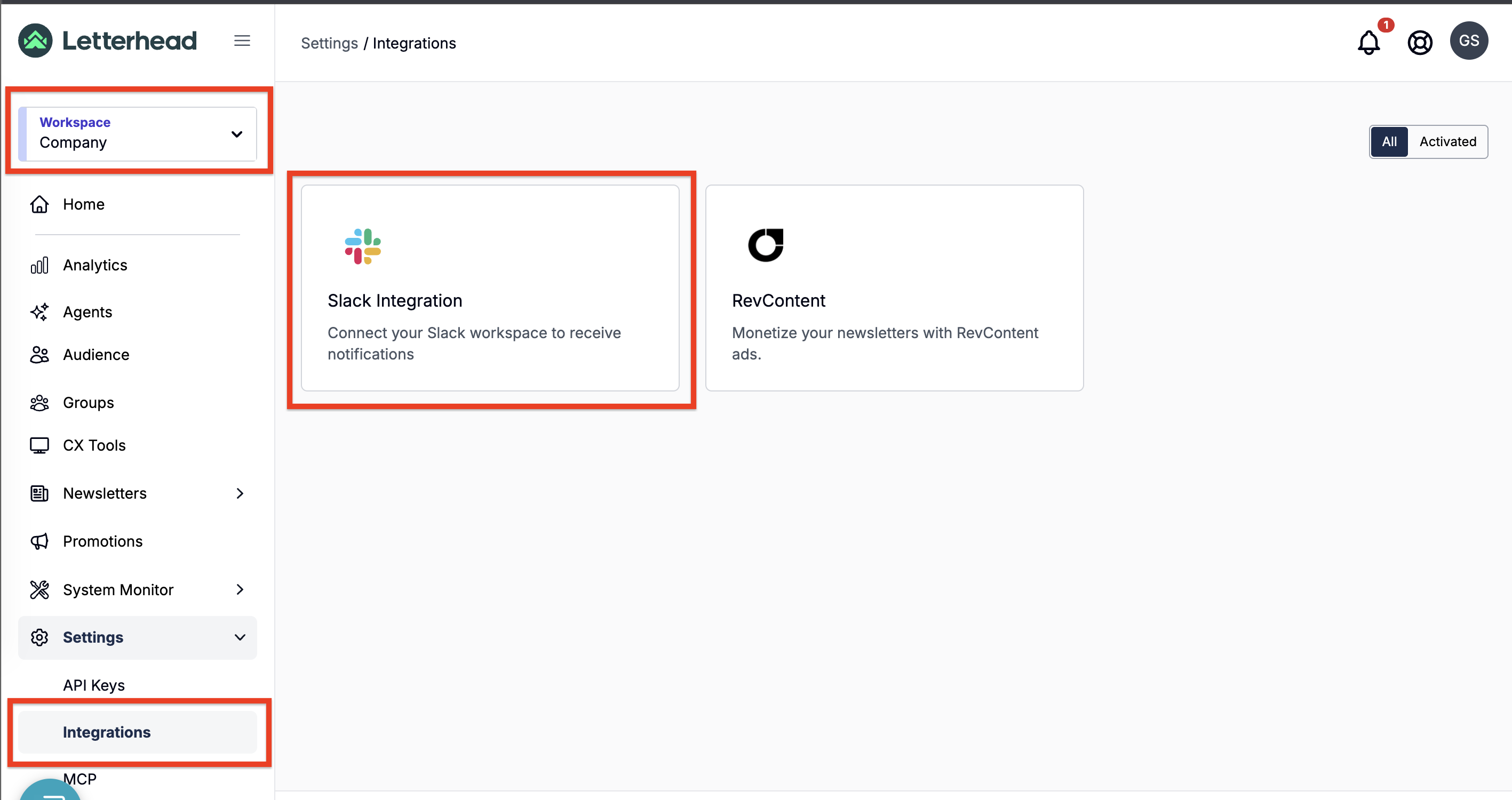
If you don't see the Slack tile in Settings → Integrations, your account hasn't been enabled for it yet. Email support and we'll turn it on.
Step 2: Click Connect to Slack
Click the Connect to Slack button on the Slack tile.
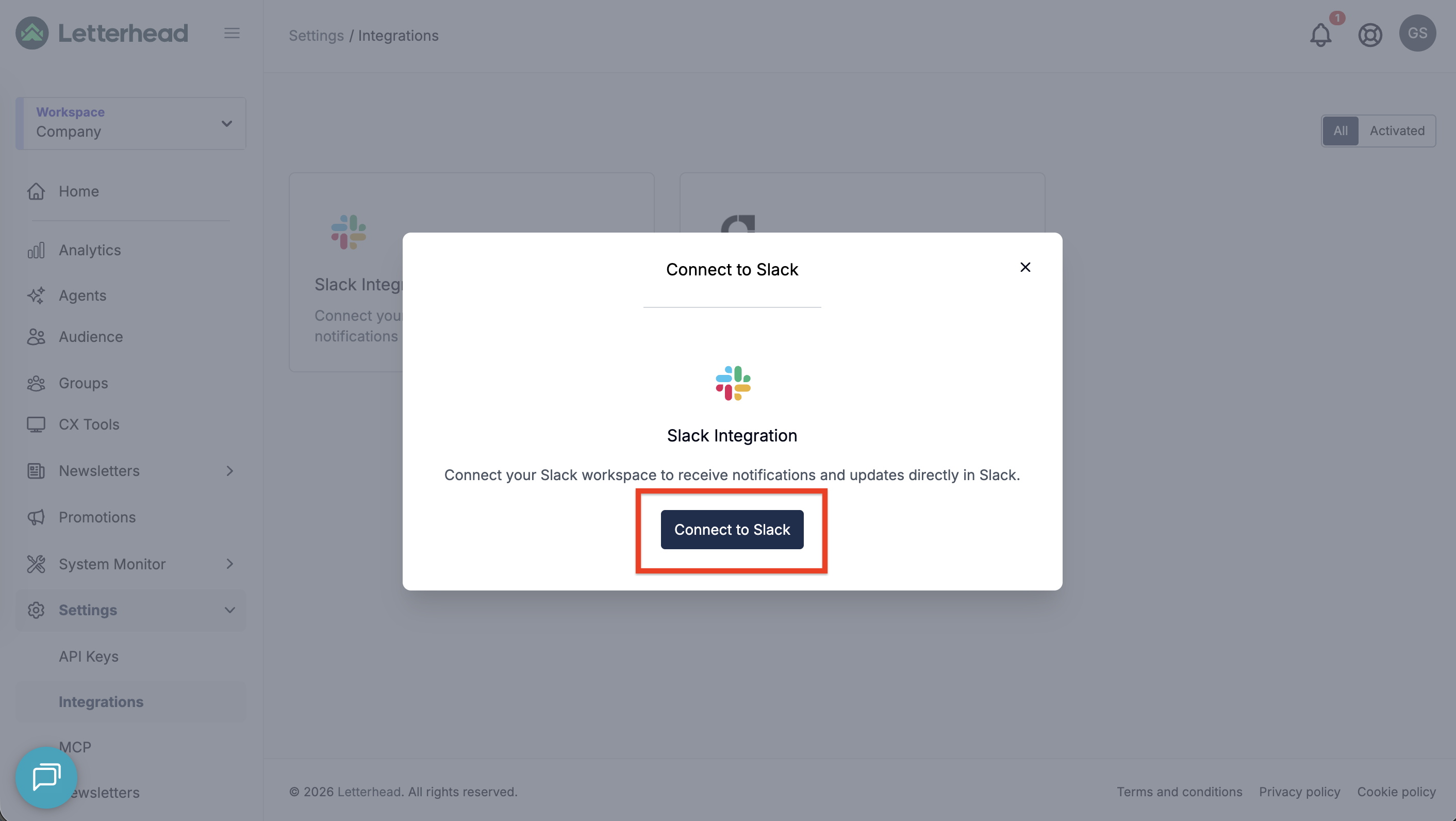
A new browser window opens to Slack's OAuth authorization page.
If nothing happens when you click, your browser may be blocking the popup. Allow popups for app.tryletterhead.com and try again.
Step 3: Approve the connection in Slack
Slack asks you to sign in (if you're not already) and then asks which Slack workspace you want to connect Letterhead to. Pick the workspace your team uses.
Slack then asks you to pick the channel where Letterhead's notifications should post. This is the channel that will receive every scheduled-letter and metrics-ready message from Letterhead — pick carefully. We'd recommend a dedicated newsletter operations channel rather than a general team channel.
Once you click Allow in Slack, you're redirected back to Letterhead. The integration tile updates to show Connected to [your workspace name].
Step 4: Test it
Schedule a test newsletter — or wait for the next real scheduled send — and confirm the message lands in the Slack channel you picked. The message should appear within a few seconds of the schedule action.
How to disconnect
In Settings → Integrations, find the Slack tile (which now shows "Connected to [workspace name]"). Click Disconnect. The integration is removed immediately and notifications stop. No further Slack messages will be sent until you reconnect.
Disconnecting in Letterhead does not remove the Letterhead app from your Slack workspace. If you want to fully revoke access on the Slack side as well, your workspace admin can remove the Letterhead app from Slack's app directory.
Troubleshooting
The Slack tile isn't showing in Settings → Integrations. The integration is behind a feature flag. Email support to have it enabled for your account.
I clicked Connect to Slack and nothing happened. Your browser blocked the popup. Allow popups for app.tryletterhead.com and click again.
I see "Failed to initiate Slack connection." This usually means Letterhead couldn't reach Slack's authorization service. Try again in a minute. If it persists, contact support.
The connection went through but I'm not getting messages in Slack. A few things to check:
- Confirm you're looking at the same Slack channel you picked during the connection flow. The notifications post only to that one channel.
- Make sure the letter you're expecting a message about was actually scheduled (not just saved as a draft). Drafts don't fire notifications.
- The "ready for metrics" message lands once delivery finishes and metrics are computed — that can take a few minutes after the send completes for large audiences.
A Slack message looks broken or doesn't show the View Newsletter button. The View Newsletter button only appears if Letterhead has a valid public URL for the letter. For most letters this is automatic, but very early-draft letters that have never been previewed may not yet have a public URL. Once the letter has been previewed once, the URL exists and future notifications include the button.
I keep getting an email saying a Slack webhook failed. Letterhead emails the team administrator when it can't deliver a notification to Slack — typically because the integration was disconnected on the Slack side (the app was removed from the workspace) without being disconnected in Letterhead. Reconnect from Settings → Integrations to clear the failure state.
What's coming
A few things are planned for the Slack integration but not yet available:
- Per-event channel routing — sending different event types to different Slack channels (e.g., scheduled-letter messages to #newsletter-ops, metrics-ready messages to #content-team).
- Notification preferences — controlling which events fire to Slack at the company level.
- More event types — promotion campaign updates and audience changes are on the roadmap.
- Per-organization overrides — letting different organizations under the same company route to different Slack workspaces.
None of these are available today. If any of them would unblock a real use case for you, email support and we'll log the feature request.
Still stuck? Reach out to support and we'll help you get connected.