![LH-2025-Logos-15.png]](https://help.tryletterhead.com/hs-fs/hubfs/LH-2025-Logos-15.png?height=31&name=LH-2025-Logos-15.png)
With Block Library, you can:
-
Save any block and its configuration for future use
-
Reuse saved blocks across newsletters and templates
-
Search and filter saved blocks by type
-
Rename or delete saved blocks from the Templates section
Saving a Block from the Composer
You can save a block directly while creating or editing a newsletter.
Steps
-
In the newsletter composer, hover over the block you want to save.
-
Select the Save icon from the block toolbar (alongside Duplicate).
-
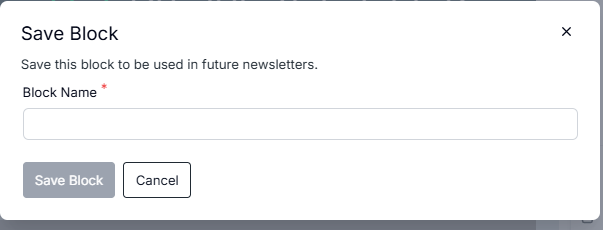
A modal will appear prompting you to:
-
Enter a Block Name
-
Choose to Save or Cancel

-
-
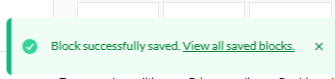
Once saved successfully, a confirmation toast will appear:
"Block saved successfully. View all saved blocks."
-
Selecting View all saved blocks will take you to the Block Library within the composer.
Using a Saved Block in a Newsletter
Saved blocks can be reused in any newsletter through the composer.

Accessing the Block Library
-
In the composer, select the Library tab.
-
This tab contains all of your saved blocks.
Library Features
-
Searchable by block name
-
Filterable by block type
Adding a Saved Block
-
Open the Library tab in the composer.
-
Locate the saved block using search or filters.
-
Drag and drop the block into your newsletter.
The block will be added with all previously saved settings intact.
Saved Blocks in Templates
Saved blocks can also be managed from the Templates section of the app.
Accessing Saved Blocks
-
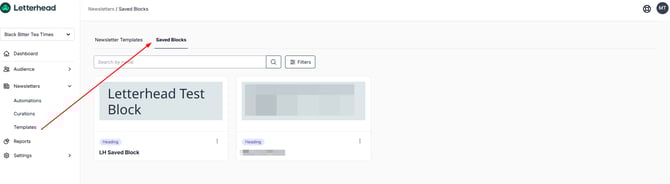
Navigate to Templates.
-
You will see two tabs:
-
Newsletter Templates
-
Saved Blocks
-
-
Select Saved Blocks to view your Block Library.
Library Features
-
Fully searchable by block name
-
Filterable by block type
Managing Saved Blocks
From the Saved Blocks tab in Templates, each block card includes a submenu with management options.
Rename a Block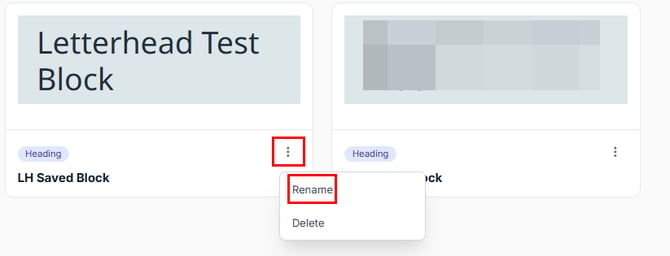
-
Click the ellipses of the block you want to rename
-
Select Rename block.
-
Enter the preferred name
-
Hit on Save
Delete a Block
-
Click the ellipses of the block you want to rename
-
Select Delete.
-
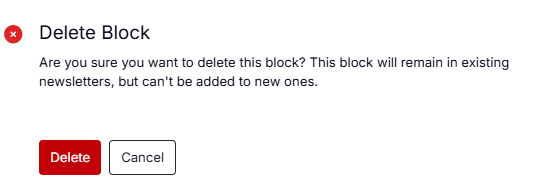
A confirmation message will appear
-
Hit on Delete
Need Help?
If you have questions or need assistance, please contact our support team at support@tryletterhead.com or log a support ticket through the Help Center!