![LH-2025-Logos-15.png]](https://help.tryletterhead.com/hs-fs/hubfs/LH-2025-Logos-15.png?height=31&name=LH-2025-Logos-15.png)
What is a social card?
A social card is the preview that shows up when someone shares a link to your newsletter on social media or in a chat app — the little box with an image, a title, and a short description. You've seen them countless times in your Twitter/X, LinkedIn, Slack, iMessage, and Facebook feeds.
Behind the scenes, the card is built from a set of HTML meta tags (Open Graph and Twitter Card tags) on the public web version of your letter. When a link is pasted into a social platform or messenger, that platform fetches the page, reads those tags, and builds the preview from them.
Without a social card, a shared link is plain text — easy to scroll past. With a good one, your story gets visual real estate and a much better chance at a click.
Where social cards live in Letterhead
In Letterhead, social cards are set per letter. Each individual letter has its own optional image, title, and preview text that appear when that letter's URL is shared.
There's no channel-wide or template-level default to configure separately — you set or override the card on each letter you want to give the social treatment. If you don't set anything, the public letter page falls back to its own defaults (the letter's title, the first image in the body, and so on — see "What if I leave it blank?" below).
Before you start
Have your social card image ready. Recommendations:
- Dimensions: 1200 × 630 px is the de-facto standard. Twitter/X, Facebook, LinkedIn, and Slack all render that aspect ratio cleanly.
- File type: JPG or PNG. JPG is fine for photographic images; PNG if you need crisp text or transparency.
- Size: Keep it under ~1 MB so previews load quickly.
- Text in the image: Some platforms downscale the preview heavily, so any text should be large and high-contrast.
You can also use a hosted image from the web — you'll just need its direct URL.
How to set a social card on a letter
Step 1: Open the letter and go to Step 2
In your channel, open the letter you want to give a social card to. The letter editor opens on Step 1 of 3: Create.
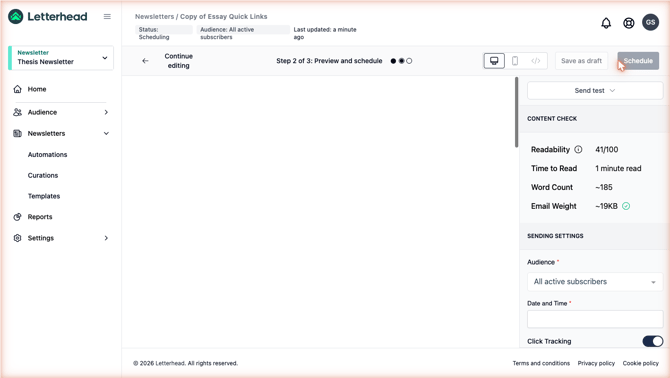
Click Preview and schedule (top-right) to advance to Step 2 of 3: Preview and schedule.
Step 2: Scroll to the SOCIAL CARD section
The right-hand sidebar in Step 2 is organized into stacked sections. Scroll past Send test, Content Check, Sending Settings, and the Email Subject / Preview Text fields (those are the inbox-preview fields, not the social card). Below them you'll find the SOCIAL CARD section.
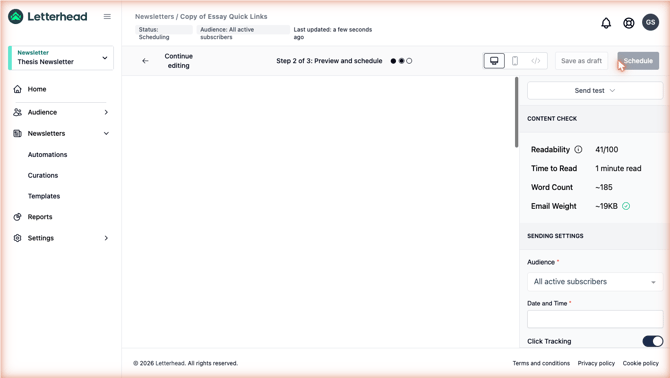
It has three fields:
- Image — the picture that appears in the social preview. Click the placeholder to open the upload window.
- Title — the headline of the card. Max 180 characters.
- Preview text — the short description below the title. Max 180 characters.
Step 3: Upload an image
Click the image placeholder. An upload window opens with three options on the left:
- Preview — preview the currently selected/uploaded image.
- Local Files — upload from your computer.
- Direct Link — paste a URL to an image hosted on the web.
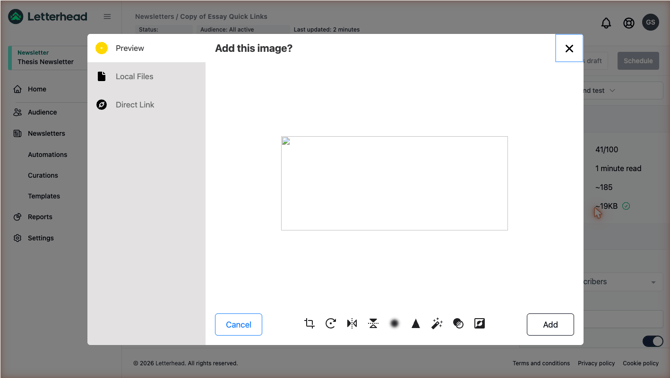
Once you've selected or uploaded an image, you can use the editing tools along the bottom of the window (crop, rotate, flip, and a few light adjustments) to clean it up. Click Add to attach the image to your social card. Click Cancel to back out.
Step 4: Fill in the title and preview text
Back in the SOCIAL CARD section:
- Title — keep it tight. You have 180 characters, but most platforms only show the first 60–80 before truncating, so put the hook up front.
- Preview text — also 180 characters. Treat it like a deck or subhead: one sentence that makes someone want to click.
The letter saves changes automatically while you work. You can come back and edit any of these fields up until you schedule or send.
How to test your social card
Before you publish a big send, preview the card the way social platforms will see it.
- Facebook / Meta Sharing Debugger —
https://developers.facebook.com/tools/debug/. Paste your public letter URL and click Scrape Again to refresh the preview Facebook, Instagram, and Threads will use. - LinkedIn Post Inspector —
https://www.linkedin.com/post-inspector/. Same idea for LinkedIn. - Slack / iMessage — paste the link into your own DMs. Both render Open Graph tags directly, and it's the closest you can get to a "production" preview.
- X (Twitter) — Twitter retired the public Card Validator, but you can draft a tweet with your URL and look at the inline preview before sending.
If the preview is wrong or missing, see Troubleshooting below.
What if I leave it blank?
Each field falls back to something sensible if you leave it empty, so a shared link will always have some preview. The fallback chain for each field:
Title — if you don't set one, the social card title becomes the letter's own title. If somehow that's also empty, it falls back to the channel name.
Preview text — if you don't set one, the social card description becomes the letter's subtitle.
Image — if you don't upload one, Letterhead auto-assigns the first image that appears in the letter body. If the letter has no images at all, it falls back to the channel's logo.
That means an everyday send will get a workable card without any extra effort. Set the fields explicitly when you want to control the framing — a tentpole story, a launch, a sponsored send, or anything where the first image and the letter title aren't doing the work you want them to.
Removing or changing a social card
Head back to Step 2 → SOCIAL CARD on the letter, clear the field you want to remove, and the letter saves the change. If a social platform has already cached the previous preview, you may need to force a refresh — see the cache-busting tip in Troubleshooting.
Troubleshooting
Card hasn't updated after I changed the image. Social platforms aggressively cache previews. Use the Facebook Debugger's Scrape Again button to force a refresh, or append a dummy query string to the URL (?v=2) to bypass the cache.
Image isn't showing. Check that the image is publicly accessible (no auth required), at least 200 × 200 px, and under each platform's size cap (Facebook: 8 MB, LinkedIn: 5 MB).
Wrong title or preview text. Confirm you've saved the letter and that the new public URL shows the updated tags. You can view source on the public letter URL and search for og:title to inspect the meta tag.
My title is getting cut off. Title and Preview text both cap at 180 characters in Letterhead, but social platforms truncate much earlier than that. Aim for ~60–70 characters for the title and ~150 for the preview text if you want both to display in full.
Nothing happens when I click the image upload. The upload dialog can be blocked by an ad-blocker or strict tracker setting. Try disabling those for this site, or use Direct Link with a URL to your already-hosted image.
Still stuck? Reach out to support and we'll help you get it dialed in.