![LH-2025-Logos-15.png]](https://help.tryletterhead.com/hs-fs/hubfs/LH-2025-Logos-15.png?height=31&name=LH-2025-Logos-15.png)
Letterhead has an MCP server that lets you talk to your Letterhead account through an AI assistant — Claude, ChatGPT, or any client that supports custom MCP connectors. Once it's connected, you can draft newsletters, look up metrics, search curated content, and clean up drafts without ever leaving the conversation.
This article walks through what the MCP can do, how to connect it, and a few example conversations you can use to get started.
If anything in this guide doesn't match what you see in your account, reach out to support.
What's new
Three capabilities are worth calling out specifically:
- Newsletters land in your channel's visual identity. When the assistant drafts a newsletter for one of your channels, it pulls that channel's brand colours, fonts, and logo (your horizontal lockup if you have one, otherwise the square logo) plus your CAN-SPAM footer. The draft looks like your newsletter from the first preview — not a generic Letterhead shell.
- Drafts link directly to the composer. Every newsletter the assistant creates returns an openable composer link in its reply. Click it and you land inside Letterhead's composer with that draft loaded — pick a segment, set a publication date, send.
- You can delete drafts from the conversation. If a draft isn't useful, ask the assistant to delete it and it'll soft-delete the letter in Letterhead. Scheduled or sending letters get unwound cleanly. Only letters in your own company can be deleted — letters on someone else's account are refused.
Before you start
- The MCP is currently available to Company Administrators only. If a non-admin user tries to sign in to the connection, they'll see an authorization error.
- You'll need an AI client that supports custom MCP / connector setup — Claude (desktop or web on a paid plan), ChatGPT (Plus, Pro, Team, or Enterprise), or any other client that lets you add a custom MCP server URL.
- The MCP is rolled out behind a feature flag. If you don't see the MCP tab under Company Settings, support can confirm whether it's enabled for your account.
Connecting your AI assistant
The setup happens in two places: Letterhead (to copy your tenant's MCP URL) and your AI client (to add Letterhead as a custom connector).
Step 1 — Copy your MCP server URL from Letterhead
In Letterhead, go to Company Settings → MCP.
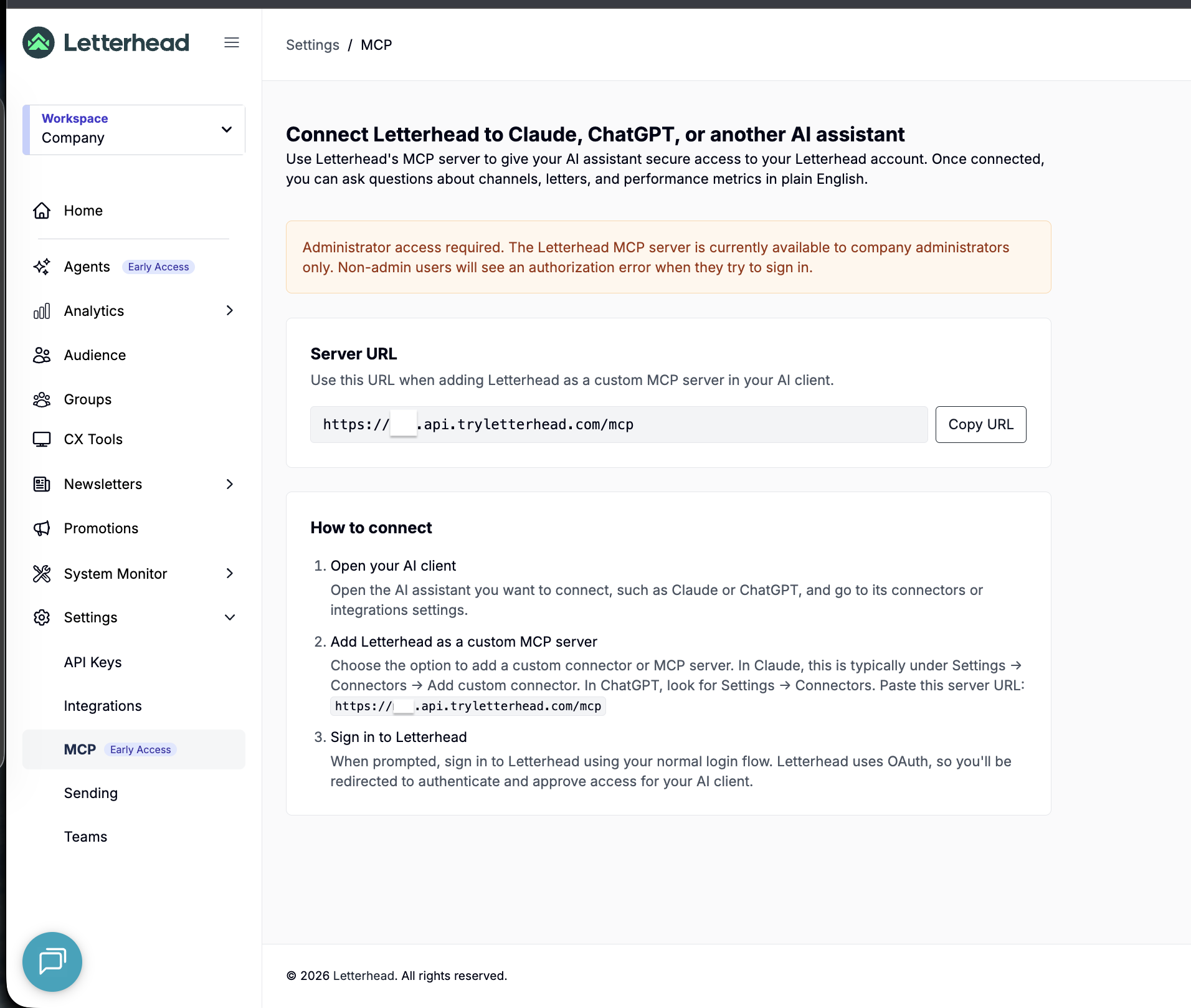
You'll see a server URL that looks like this:
https://{your-tenant}.api.tryletterhead.com/mcp Where {your-tenant} is your account's tenant slug (the part before .app.tryletterhead.com when you're logged in). Click Copy URL to put it on your clipboard.
Step 2 — Open your AI client and find its connector settings
Open the AI assistant you want to connect, and go to its connectors or integrations settings.
- Claude (desktop or web): Settings → Connectors → Add custom connector.
- ChatGPT: Settings → Connectors.
- Other MCP-compatible clients: look for "MCP servers" or "Custom connectors" in settings.
Step 3 — Add Letterhead as a custom MCP server
Choose the option to add a custom connector or MCP server. Paste the URL you copied from Letterhead. Give the connector a recognizable name like Letterhead.
Step 4 — Sign in to Letterhead
When the client prompts you, sign in to Letterhead using your normal login. Letterhead uses OAuth, so you'll be redirected to authenticate and approve access for your AI client. After you approve, you'll be sent back to the client and the connector goes live.
You're done — the assistant now has access to your Letterhead account scoped to your company.
What you can ask once it's connected
The MCP exposes a few groups of capabilities. You don't have to memorize tool names — phrase your request in plain English and the assistant picks the right tool.
Drafting newsletters
The headline capability. Ask in plain language:
"Draft a weekly roundup of our top AI safety stories for the policy-watch channel."
The assistant runs three stages — discovers your channel's curated content, composes a body in your channel's established voice, and renders it into email-safe HTML with your channel's brand styling and CAN-SPAM footer. It then saves it as a draft (never schedules or sends — that stays with you) and returns:
- An openable composer link to the draft.
- A suggested subject line.
- How many curated items it featured.
- Any voice warnings.
You can narrow what gets featured by adding keywords:
"Draft a newsletter about the EU AI Act for policy-watch — focus on stories tagged 'EU' and 'regulation'."
If your channel's curated pool is thin and you gave keywords, the assistant can pull fresh material from the open web for those keywords so the draft is still well-populated.
Looking up performance
"How did the last 5 sends from morning-brief perform?" "Show me the top 10 clicked links from the most recent letter in the-daily." "Compare open rates between morning-brief and the-evening-edit for the last month."
Researching curated content
"What curated stories do we have on climate policy from the last 2 weeks?" "Find me articles about quantum computing across our channels."
Cleaning up drafts
"Delete the draft we just made — I don't think it's working."
The assistant calls the delete-letter tool, which soft-deletes the draft on Letterhead's side. Only letters in your own company can be deleted, and the assistant won't delete proactively — it only deletes when you explicitly ask.
Subscriber and audience signals
"How has the subscriber count for morning-brief changed over the last 30 days?" "What segments do we have set up on morning-brief?"
Example conversation
You: Draft a newsletter for the policy-watch channel about the EU AI Act passing — lead with the headline, then a short analysis of who it affects.
Assistant: (runs through discovery → compose → render) Draft created.
- Subject: "The EU AI Act passes — what it means for AI builders"
- Featured items: 4 curated stories from your policy-watch pool
- Composer link: https://app.tryletterhead.com/organizations/your-brand/channels/policy-watch/newsletters/abc123
Open the composer to pick your segment and schedule the send.
You: Actually scrap that — I want to lead with a different angle.
Assistant: Done — that draft has been deleted. Want me to try again with a different framing?
Troubleshooting
I see "Authorization error" when signing in. The MCP is available to Company Administrators only. If you're not an admin on the account, ask your Company Admin to either grant you the right role or run the connection on your behalf.
The MCP tab isn't visible in Company Settings. The MCP is rolled out behind a feature flag. Support can confirm whether it's enabled for your account.
The assistant says "This capability is not enabled for this tenant." Some MCP tools — currently the newsletter drafting and draft deletion tools — are gated by a second feature flag. Support can check that flag for your account.
The draft doesn't look like my brand. The MCP uses your channel's resolved Letter Settings (brand colours, fonts, headings, etc.) plus the channel's logo. If your channel doesn't have a horizontal lockup uploaded, it falls back to the square logo; if neither is set, you'll see Letterhead's default styling. Set your brand in Brand Kit to fix this.
The composer link the assistant returned 404s. The link points to a specific letter in your company's account. If you're signed into Letterhead as a different company, you'll see a 404 because the letter doesn't belong there. Sign into the company the draft was created for and follow the link again.
The assistant says the channel has no matching content. If your channel's curated pool is empty and you didn't supply keywords (or you did, but no matching stories exist and nothing came back from the web), the draft can't be composed. Either add some curated content to the channel first, or rephrase your ask with broader keywords.
FAQs
Does the MCP send the newsletter automatically? No. The MCP only creates drafts. You always open the composer to choose your audience segment, pick a publication date, and decide whether to schedule or send. The MCP can also delete drafts but never sends.
Will the AI client see my subscribers' personal data? The MCP exposes channel-level, letter-level, and aggregate metric data, plus curated content and segment definitions. Subscriber identities are not exposed through the MCP. Where individual-level data shows up at all (e.g., metrics on a single letter), it's the aggregated counts and rates, not the underlying subscriber list.
Can I connect from more than one AI client? Yes. Add the same MCP URL in each client. Each one runs its own OAuth sign-in, so revoking access in one client doesn't affect the others.
How do I disconnect? Disconnect from the AI client's connector settings. Letterhead doesn't store anything client-specific — the connection is just an OAuth grant, and removing the connector revokes that client's access.
Does this replace the in-app composer? No. The MCP is an additional way to draft newsletters quickly from a conversation. All the regular Letterhead authoring tools — block-by-block composing, templates, curated content embeds, polls — still work the same way and remain the place to finish a draft before sending.
If anything in this guide doesn't match what you see, or you'd like a hand testing the connection, support can help.